> ## Documentation Index
> Fetch the complete documentation index at: https://docs.agentify.jp/llms.txt
> Use this file to discover all available pages before exploring further.
# クローラーマニュアル
> Webスクレイピングツールで利用する getHtml、xpath、regex、jsonPath などのコマンド記法を説明します。
このマニュアルでは、クローラーのフィールド抽出ルールで利用するコマンドスクリプトの書き方を説明します。各コマンドは1行ずつ記述し、最後は `get`、`all`、`rawText` などの終端コマンドで終了します。
## 1. 概要
### 1.1 構文
スクリプトは、コマンドと任意のパラメータで構成されます。
```text theme={null}
<コマンド> [=> コマンドパラメータ]
```
必須項目です。1行に1つだけ記述します。戻り値がセレクタ型の場合は、次の行へチェーンできます。
パラメータを指定するための記号です。パラメータが不要なコマンドでは省略します。
XPath、正規表現、jsonPath など、コマンドに渡す具体的な条件です。
最後のコマンドは必ず終端型にしてください。セレクタ型のまま終わると、抽出結果として利用できません。
### 1.2 サンプル
すべてのリンクを取得し、`/articles/` を含むリンクだけを抽出します。
```shell theme={null}
getHtml
links
regex=>.*/articles/.*
all
```
任意の article タグ内で、`class="article-body"` の要素配下にある h1 のテキストを取得します。
```shell theme={null}
getHtml
xpath=>//article[@class='articlePage']//h1/allText()
get
```
任意の div タグ内で、`class="article-body"` の要素配下にある記事本文全体を取得します。
```shell theme={null}
getHtml
xpath=>//div[@class='article-body']/allText()
get
```
## 2. コマンド一覧
| コマンド | パラメータ | 戻り値タイプ | 説明 | 使用例 |
| ---------- | ---------- | ----------- | -------------------------------------------- | ----------------------------------------------- |
| `getHtml` | なし | セレクタ | HTML コンテンツをセレクタとして取得します。 | `getHtml` |
| `getJson` | なし | セレクタ | JSON コンテンツをセレクタとして取得します。 | `getJson` |
| `rawText` | なし | String | 終端コマンド。ページ全体のテキストを取得します。 | `rawText` |
| `xpath` | XPath 式 | セレクタ | XPath 式に従って要素を選択します。 | `xpath=>//div[@class='article-body']/allText()` |
| `regex` | 正規表現 | セレクタ | 正規表現で内容を選択します。 | `regex=>.*/articles/.*` |
| `jsonPath` | jsonPath 式 | セレクタ | jsonPath 式に従って JSON の内容を選択します。 | `jsonPath=>$.data.content` |
| `links` | なし | セレクタ | ページ内のリンク URL を取得します。 | `links` |
| `get` | なし | String | 終端コマンド。選択された要素の内容を1件取得します。 | `get` |
| `all` | なし | String のリスト | 終端コマンド。選択された要素の集合を取得します。主に `links` の後で利用します。 | `all` |
## 3. 関連構文
### 3.1 XPath 構文
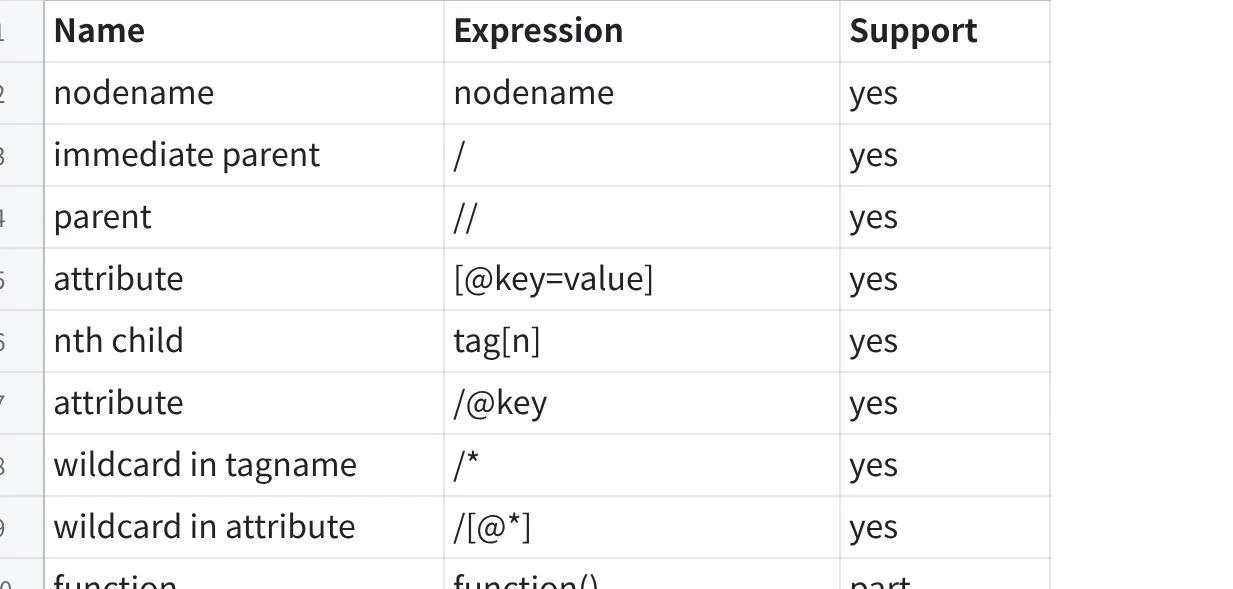
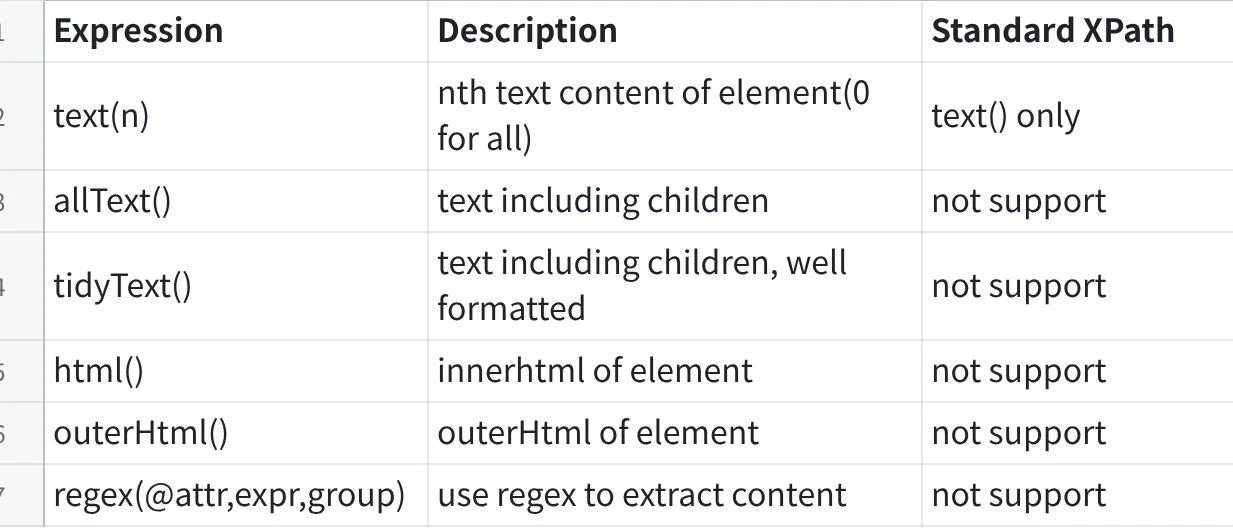
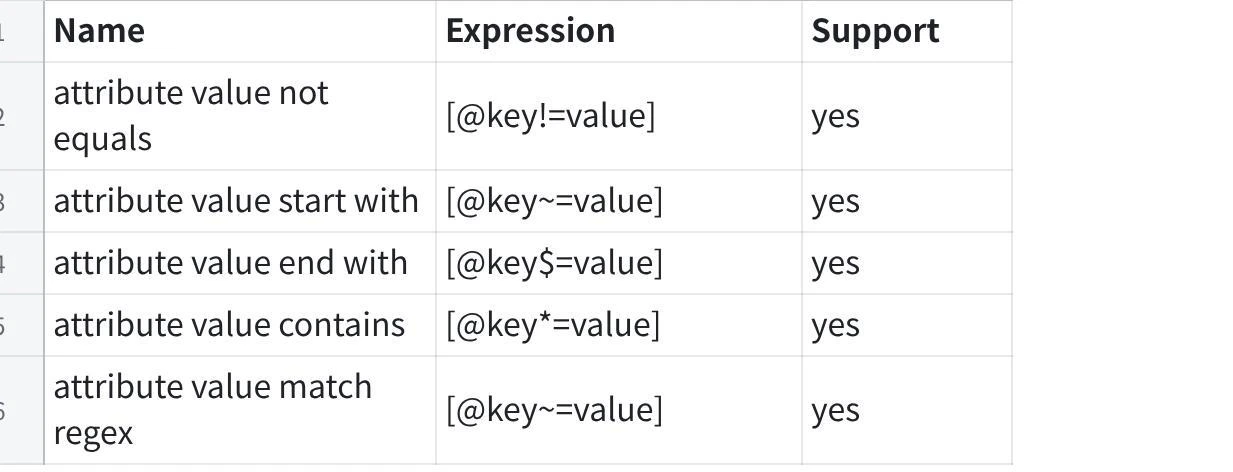
XPath は Xsoup の構文仕様に準拠しています。HTML の要素、属性、テキストを指定して抽出できます。
`//h1`、`//div` のようにタグ名で要素を指定します。
`//div[@class='article-body']` のように属性値で対象を絞り込みます。
`text()` や `allText()` を使って、要素内のテキストを取得します。
`/` や `//` を使って、親子関係や子孫要素を指定します。
 #### よく使う XPath 例
| 目的 | XPath 例 |
| ---------------- | ------------------------------------------- |
| h1 のテキストを取得 | `//h1/text()` |
| id 指定で本文を取得 | `//div[@id='press-release-body']/allText()` |
| class 指定で本文を取得 | `//div[@class='article-body']/allText()` |
| a タグの href 属性を取得 | `//a/@href` |
#### よく使う XPath 例
| 目的 | XPath 例 |
| ---------------- | ------------------------------------------- |
| h1 のテキストを取得 | `//h1/text()` |
| id 指定で本文を取得 | `//div[@id='press-release-body']/allText()` |
| class 指定で本文を取得 | `//div[@class='article-body']/allText()` |
| a タグの href 属性を取得 | `//a/@href` |
 ### 3.2 regex 構文
`regex` は、取得済みのテキストやリンク一覧から、条件に一致する内容だけを抽出するために使います。
```shell theme={null}
getHtml
links
regex=>https://example\.com/articles/\d+\.html
all
```
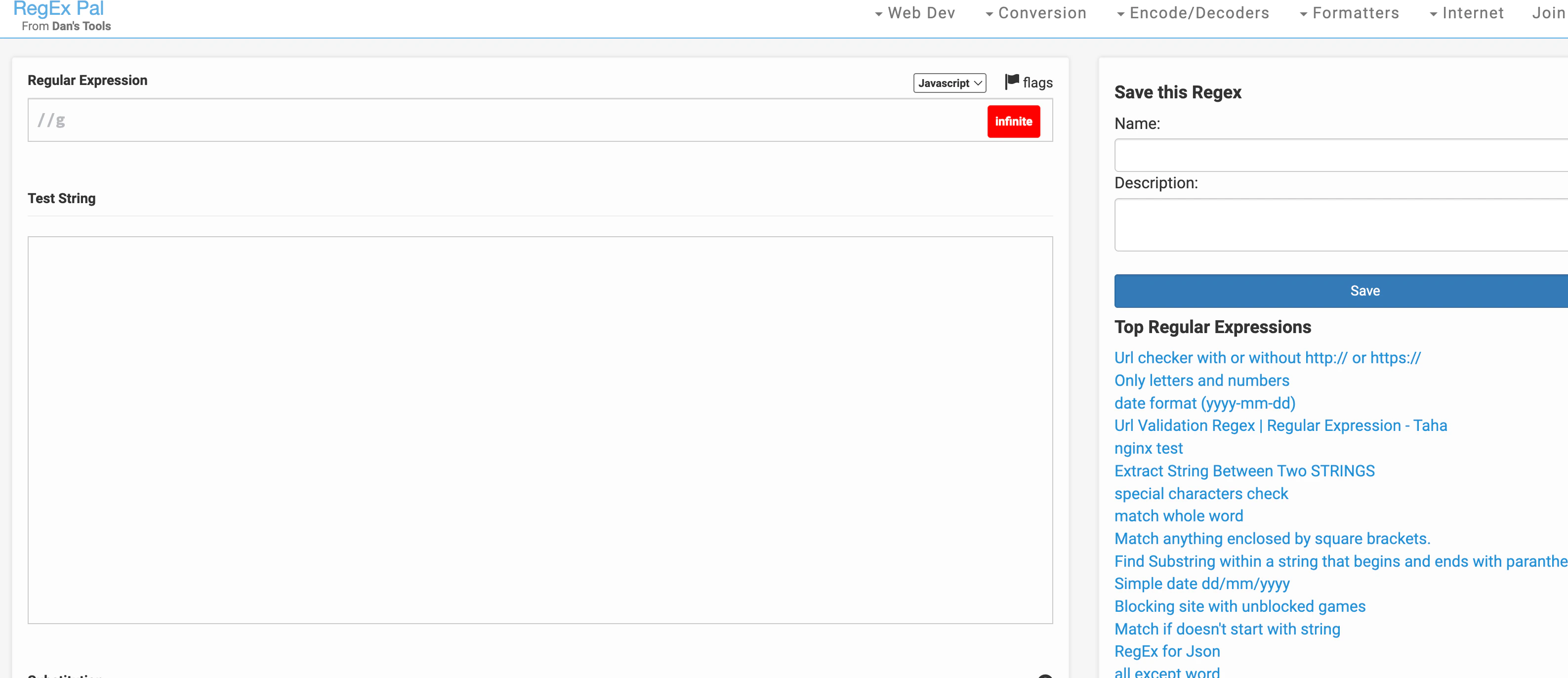
正規表現の学習や動作確認には、以下のような練習サイトを利用できます。
基本的な正規表現を確認しながら練習できます。
### 3.2 regex 構文
`regex` は、取得済みのテキストやリンク一覧から、条件に一致する内容だけを抽出するために使います。
```shell theme={null}
getHtml
links
regex=>https://example\.com/articles/\d+\.html
all
```
正規表現の学習や動作確認には、以下のような練習サイトを利用できます。
基本的な正規表現を確認しながら練習できます。
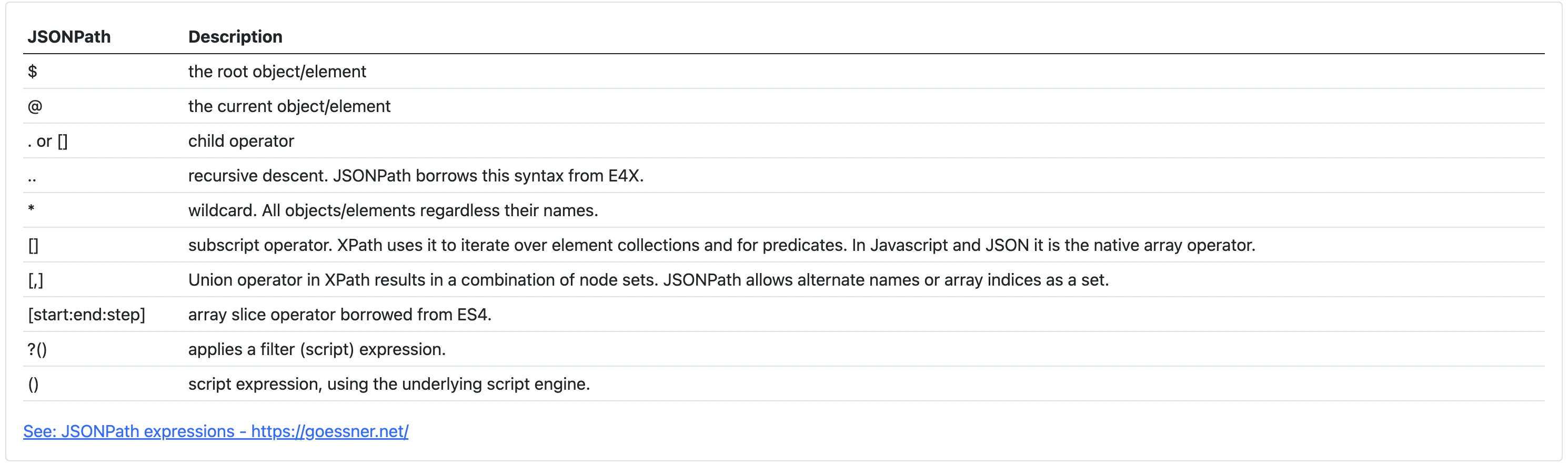
 ### 3.3 jsonPath 構文
`jsonPath` は、JSON 形式のレスポンスから特定の値を抽出するために使います。
```shell theme={null}
getJson
jsonPath=>$.data.content
get
```
jsonPath の動作確認には、以下のサイトを利用できます。
JSON データと jsonPath 式を入力して、抽出結果を確認できます。
### 3.3 jsonPath 構文
`jsonPath` は、JSON 形式のレスポンスから特定の値を抽出するために使います。
```shell theme={null}
getJson
jsonPath=>$.data.content
get
```
jsonPath の動作確認には、以下のサイトを利用できます。
JSON データと jsonPath 式を入力して、抽出結果を確認できます。